Dual-pane file management
See local and remote files side by side, browse folders, and check where files will be transferred.
FASTREMOTE · SFTP CLIENT
Browse local and remote folders side by side. Upload files, download logs, and edit configurations in one app with FastRemote for Windows, macOS, and Linux.
Download free trial 15 days · No payment method required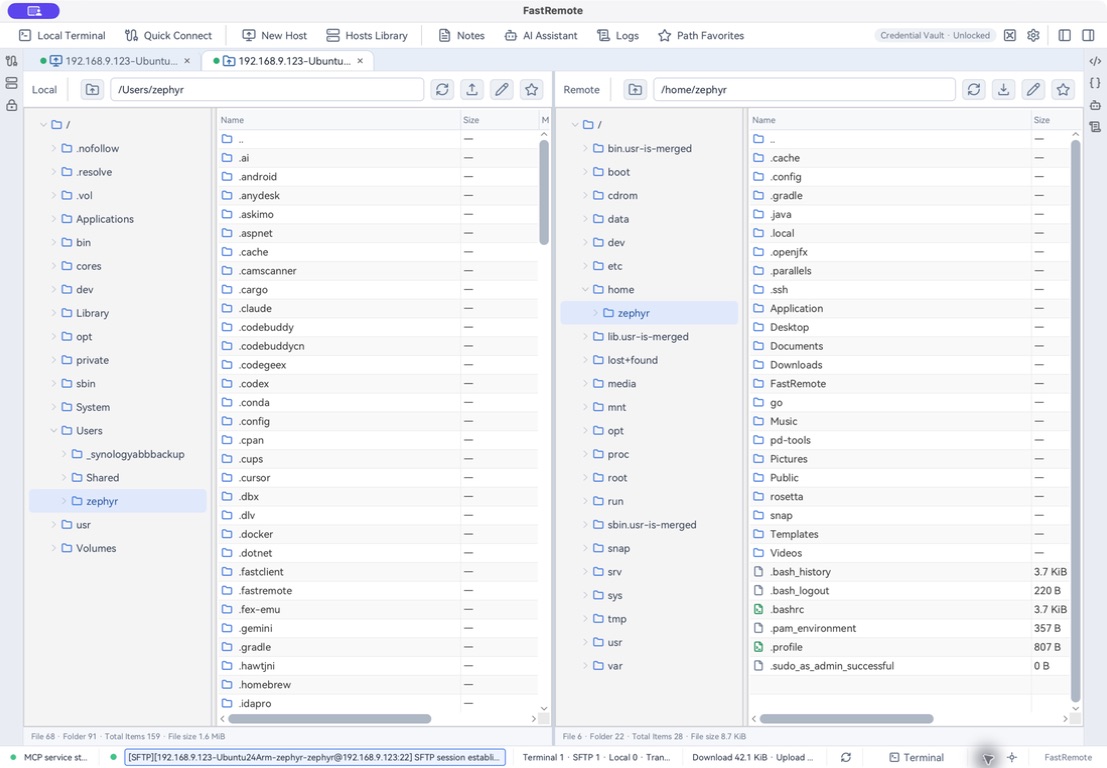
See local and remote files side by side, browse folders, and check where files will be transferred.
Drag files or folders to the destination to start an upload or download. Select multiple files for batch transfers.
Track transfer tasks and progress in one place, and cancel tasks you no longer need.
Open remote text files in the built-in editor and save changes back to the server without a separate download and upload step.
Transfer files and use the terminal in the same client. Switch to the terminal when you need to inspect files or run commands.
SFTP transfers files over an encrypted SSH connection, with password or private key authentication and host key checks.
The server must have SFTP enabled, and your account needs the required folder permissions. SFTP runs over SSH; it is a different protocol from FTP and FTPS.